
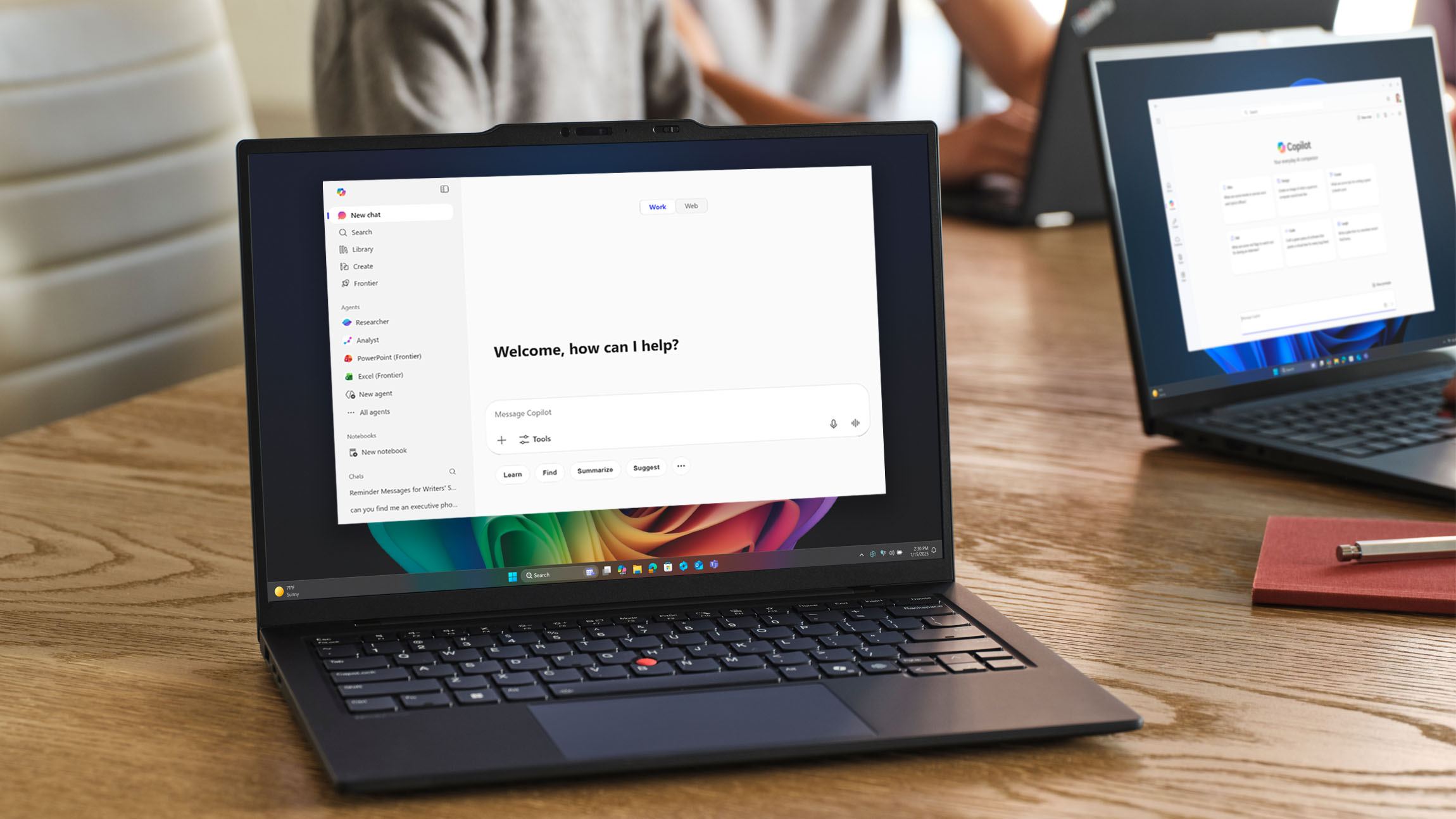
Microsoft Copilot is changing the way professionals work by helping automate routine office tasks. Whether you’re managing emails, attending meetings, creating documents, analyzing spreadsheets, or preparing presentations, Copilot can help you work faster and more efficiently.
What Is Microsoft Copilot?
Microsoft Copilot is an AI-powered assistant built into Microsoft 365 apps like Word, Excel, PowerPoint, Outlook, Teams, and Edge. Using simple natural language prompts, it can draft content, summarize information, analyze data, and generate ideas, saving valuable time throughout the workday.
How Copilot Helps at Work
Email Management
Copilot can summarize long email threads, identify action items, and draft professional replies. Instead of reading dozens of messages, you can quickly understand the conversation and respond confidently.
Meeting Summaries
After meetings, Copilot can create clear recaps that include key discussion points, decisions made, and action items, making follow-ups faster and more organized.
Document Writing
From project reports to proposals and business updates, Copilot can turn rough notes into well-structured drafts, helping you overcome the blank page and write more efficiently.
Excel Analysis
Need help understanding your data? Copilot can identify trends, suggest formulas, explain insights, and summarize spreadsheet information using plain English.
PowerPoint Presentations
Copilot can build presentation outlines from your notes or documents, giving you a strong starting point for client presentations, project updates, or team meetings.
Web Research
When browsing in Microsoft Edge, Copilot can summarize lengthy articles, documentation, and web pages, helping you find key information without reading every detail.
Write Better Prompts
The quality of Copilot’s responses depends on the quality of your prompts. Include:
- Context
- The specific task
- Desired output format
- Tone
- Any limits or instructions
The more specific your prompt, the better the results.
Best Practices
To get the most value from Microsoft Copilot:
- Start with repetitive daily tasks.
- Review AI-generated content before using it.
- Verify names, dates, numbers, and important facts.
- Save successful prompts for future use.
- Avoid sharing sensitive information unless approved by your organization.
Final Thoughts
Microsoft Copilot isn’t designed to replace your expertise; it helps you work smarter by handling repetitive tasks and creating quality first drafts. By combining clear prompts with careful human review, you can
and spend more time on meaningful work.